Most people meet the command line through whatever window Windows opens by default, type a command they found online, and close it as soon as it works. That is a fine way to run one command. It is a poor way to work: no history worth searching, no idea which folder or branch you are in, and everything gone the moment the window closes.
This guide sets up the terminal I use every day, adapted to Windows 11. Two scripts do the work, and every piece they install is explained, so you can change it later instead of treating it as magic.
What you end up with
| Piece | What it does for you |
|---|---|
| WSL 2 + Debian | A real Linux system inside Windows. The tools in most tutorials run here unchanged |
| Alacritty | The terminal window. Fast, simple, configured from one text file |
| zsh + Oh My Posh | The shell, with a prompt that shows the folder, the git branch and what changed |
| Autosuggestions | Suggests the rest of a command from your history as you type |
| fzf | Fuzzy search over your command history, files and folders |
| herdr | Tabs, split panes, a file and git sidebar, and sessions that outlive the window |
Terms you will see
| Term | Meaning |
|---|---|
| Terminal | The window where you type commands. Alacritty, in this guide |
| Shell | The program inside the terminal that reads and runs those commands. Here, zsh |
| WSL | Windows Subsystem for Linux: Microsoft's way of running Linux next to Windows |
| Distribution | A packaged version of Linux. This guide uses Debian |
| Prompt | The line that waits for your next command. It can show useful context |
| Alias | A short name for a longer command, such as gs for git status |
| Pane | One shell inside a split window. herdr can show several side by side |
| Session | Your set of tabs and panes. herdr keeps it running when the window closes |
| Repository | A project folder tracked by git, with its full history of changes |
1. The Windows side
bootstrap.ps1 installs WSL 2 with Debian, Alacritty and the FiraCode Nerd Font, which carries
the icons the prompt and the sidebar use. It also limits how much memory WSL can take: by
default WSL may claim half of the machine's RAM and is slow to give it back.
Open PowerShell as Administrator (right-click the Start button, then Terminal (Admin)), download the script and run it:
cd $env:USERPROFILE\Downloads
Invoke-RestMethod https://geekendzone.com/scripts/terminal/bootstrap.ps1 -OutFile bootstrap.ps1
Set-ExecutionPolicy -Scope Process Bypass -Force
.\bootstrap.ps1
If the script tells you WSL was just installed, restart Windows before going on. It is safe to run again: every step skips what is already in place.
The full script
#Requires -Version 5.1
# bootstrap.ps1: the Windows half of a serious terminal.
# Installs WSL 2 with Debian, Alacritty and the FiraCode Nerd Font, and caps WSL's memory.
# Run it in PowerShell opened as Administrator:
#   Set-ExecutionPolicy -Scope Process Bypass -Force
#   .\bootstrap.ps1
# Safe to re-run: every step skips what is already there.
$ErrorActionPreference = 'Stop'
function Say($msg) { Write-Host "==> $msg" -ForegroundColor Cyan }

$admin = ([Security.Principal.WindowsPrincipal][Security.Principal.WindowsIdentity]::GetCurrent()
         ).IsInRole([Security.Principal.WindowsBuiltInRole]::Administrator)
if (-not $admin) { Write-Warning 'Open PowerShell with "Run as administrator" and try again.'; exit 1 }

# --- 1. WSL 2 + Debian -------------------------------------------------------------
Say 'WSL (updating)'
wsl.exe --update | Out-Host
$distros = (wsl.exe --list --quiet 2>$null) -replace "`0", '' | Where-Object { $_ -match '\S' }
$needsReboot = $false
if (-not ($distros -match '^Debian')) {
    Say 'Debian'
    wsl.exe --install -d Debian --no-launch | Out-Host
    $needsReboot = $true
}
wsl.exe --set-default-version 2 | Out-Null

# --- 2. Memory cap -------------------------------------------------------------------
# WSL takes up to half the RAM by default and is slow to give it back.
$wslconfig = Join-Path $env:USERPROFILE '.wslconfig'
if (-not (Test-Path $wslconfig)) {
    Say 'WSL memory cap (8 GB)'
    "[wsl2]`nmemory=8GB`n`n[experimental]`nautoMemoryReclaim=gradual`n" |
        Set-Content -Path $wslconfig -Encoding ASCII
}

# --- 3. Alacritty --------------------------------------------------------------------
$have = winget list --id Alacritty.Alacritty --exact --accept-source-agreements 2>$null | Select-String 'Alacritty'
if (-not $have) {
    Say 'Alacritty'
    winget install --id Alacritty.Alacritty --exact --silent `
        --accept-package-agreements --accept-source-agreements | Out-Host
}

# --- 4. FiraCode Nerd Font (the icons in the prompt and the sidebar) ---------------------
$fontName = 'FiraCode Nerd Font Mono'
$fontKey  = 'HKLM:\SOFTWARE\Microsoft\Windows NT\CurrentVersion\Fonts'
$haveFont = Get-ItemProperty -Path $fontKey | Get-Member -MemberType NoteProperty |
            Where-Object { $_.Name -like "$fontName*" }
if (-not $haveFont) {
    Say $fontName
    $zip = Join-Path $env:TEMP 'FiraCode-NF.zip'
    $dir = Join-Path $env:TEMP 'FiraCode-NF'
    Invoke-WebRequest -UseBasicParsing -OutFile $zip `
        -Uri 'https://github.com/ryanoasis/nerd-fonts/releases/latest/download/FiraCode.zip'
    Expand-Archive -Path $zip -DestinationPath $dir -Force
    foreach ($style in 'Regular', 'Bold') {
        $file = "FiraCodeNerdFontMono-$style.ttf"
        Copy-Item (Join-Path $dir $file) (Join-Path $env:WINDIR "Fonts\$file") -Force
        $label = if ($style -eq 'Regular') { $fontName } else { "$fontName $style" }
        Set-ItemProperty -Path $fontKey -Name "$label (TrueType)" -Value $file
    }
    Remove-Item $zip, $dir -Recurse -Force
}

Say 'Windows side done.'
if ($needsReboot) { Write-Host '  Restart Windows now: WSL was just installed.' -ForegroundColor Yellow }
Write-Host '  Next: open "Debian" from the Start menu, create your Linux user, and run terminal-setup.sh.'
Why Debian and not Ubuntu? Both run every tool in this guide. Debian's WSL image starts fewer background services, so it uses less memory on a laptop that also has to run Windows.
2. Create your Linux user
Open Debian from the Start menu. The first time, it asks for a user name and a password.
This account is separate from your Windows account. Write the password down: Linux asks for it
whenever a command needs administrator rights (sudo).
3. The Linux side
Still in that Debian window, download the second script and run it:
sudo apt-get update && sudo apt-get install -y curl
curl -fsSLO https://geekendzone.com/scripts/terminal/terminal-setup.sh
bash terminal-setup.sh
It installs zsh and its plugins, Oh My Posh, fzf and herdr, writes a commented ~/.zshrc, makes
zsh your default shell, and, because Alacritty is already installed, writes the Alacritty
configuration on the Windows side. Like the first script, it can be run again safely.
The full script
#!/usr/bin/env bash
# terminal-setup.sh: a serious terminal inside WSL (Debian or Ubuntu).
# zsh + Oh My Posh + autosuggestions + syntax highlighting + fzf + herdr (with its
# sidebar), and, if Alacritty is installed on Windows, its config.
# Safe to re-run: every step skips what is already there.
set -euo pipefail

log() { printf '\033[1;34m==>\033[0m %s\n' "$*"; }
BIN="$HOME/.local/bin"
mkdir -p "$BIN"
export PATH="$BIN:$PATH"

# --- 1. Base packages ---------------------------------------------------------
log "Base packages"
sudo apt-get update -qq
sudo apt-get install -y -qq zsh git curl ca-certificates fzf unzip tree >/dev/null

# --- 2. Oh My Posh (the prompt) -----------------------------------------------
if ! command -v oh-my-posh >/dev/null; then
  log "Oh My Posh"
  curl -fsSL https://ohmyposh.dev/install.sh | bash -s -- -d "$BIN" >/dev/null
fi
mkdir -p "$HOME/.config/ohmyposh"
[ -f "$HOME/.config/ohmyposh/atomic.omp.json" ] || curl -fsSL -o "$HOME/.config/ohmyposh/atomic.omp.json" \
  https://raw.githubusercontent.com/JanDeDobbeleer/oh-my-posh/main/themes/atomic.omp.json

# --- 3. zsh plugins -----------------------------------------------------------
for p in zsh-autosuggestions zsh-syntax-highlighting; do
  [ -d "$HOME/.zsh/plugins/$p" ] || {
    log "$p"
    git clone -q --depth 1 "https://github.com/zsh-users/$p" "$HOME/.zsh/plugins/$p"
  }
done

# --- 4. herdr (sessions, tabs and panes that survive closing the window) ------
if ! command -v herdr >/dev/null; then
  log "herdr"
  curl -fsSL https://herdr.dev/install.sh | sh >/dev/null
fi
if ! herdr plugin list 2>/dev/null | grep -q 'herdr-sidebar'; then
  log "herdr sidebar plugin"
  # Pin the latest release: a bare install tracks the main branch
  tag=$(curl -fsSLI -o /dev/null -w '%{url_effective}' https://github.com/alexarthurs/herdr-sidebar/releases/latest)
  herdr plugin install alexarthurs/herdr-sidebar/plugins/herdr-sidebar --ref "${tag##*/}" --yes >/dev/null 2>&1
fi
cfg="$HOME/.config/herdr/config.toml"
mkdir -p "$(dirname "$cfg")"
grep -q 'herdr-sidebar.open-sidebar' "$cfg" 2>/dev/null || cat >> "$cfg" <<'EOF'

# Sidebar: Ctrl+B then f toggles it, d opens source control, Shift+F finds a file.
[[keys.command]]
key = "prefix+f"
type = "plugin_action"
command = "herdr-sidebar.open-sidebar"
description = "sidebar: toggle"

[[keys.command]]
key = "prefix+d"
type = "plugin_action"
command = "herdr-sidebar.show-git"
description = "sidebar: source control"

[[keys.command]]
key = "prefix+shift+f"
type = "plugin_action"
command = "herdr-sidebar.quick-open"
description = "sidebar: quick open file"
EOF

# --- 5. ~/.zshrc ----------------------------------------------------------------
marker="# terminal-setup.sh"
if ! grep -qF "$marker" "$HOME/.zshrc" 2>/dev/null; then
  [ -f "$HOME/.zshrc" ] && mv "$HOME/.zshrc" "$HOME/.zshrc.bak-$(date +%Y%m%d-%H%M%S)"
  log "~/.zshrc"
  cat > "$HOME/.zshrc" <<'EOF'
# terminal-setup.sh: edit freely; machine-specific lines go in ~/.zshrc.local
export PATH="$HOME/.local/bin:$PATH"
export EDITOR=nano

# History: large, shared between panes, no duplicates
HISTFILE=~/.zsh_history HISTSIZE=10000 SAVEHIST=10000
setopt SHARE_HISTORY HIST_IGNORE_ALL_DUPS HIST_REDUCE_BLANKS

# Completion menu you can move through with the arrow keys
autoload -Uz compinit && compinit
zstyle ':completion:*' menu select

# Prompt, suggestions from history, and fuzzy search (Ctrl+R, Ctrl+T, Alt+C)
eval "$(oh-my-posh init zsh --config ~/.config/ohmyposh/atomic.omp.json)"
source ~/.zsh/plugins/zsh-autosuggestions/zsh-autosuggestions.zsh
eval "$(fzf --zsh)"

# Navigation and listing
alias ..="cd .." ...="cd ../.."
alias ll="ls -lah --color=auto" la="ls -A --color=auto"
mkcd() { mkdir -p "$1" && cd "$1"; }

# Safer defaults: ask before overwriting or deleting
alias cp="cp -iv" mv="mv -iv" rm="rm -Iv"

# Git
alias gs="git status" ga="git add ." gc="git commit -m" gp="git push"
alias gl="git log --oneline --graph --decorate -15" gd="git diff"

# Packages and maintenance
alias pkgi="sudo apt install" pkgs="apt search" pkgr="sudo apt remove"
alias zconf='${EDITOR} ~/.zshrc' zreload='source ~/.zshrc'
update() {
  echo "==> apt";  sudo apt update && sudo apt upgrade -y
  echo "==> oh-my-posh"; oh-my-posh upgrade
  echo "==> herdr"; herdr update
  local p; for p in ~/.zsh/plugins/*/; do
    echo "==> $(basename "$p")"; git -C "$p" pull --ff-only -q
  done
}

[ -f ~/.zshrc.local ] && source ~/.zshrc.local
# Must be last: it wraps every widget defined above
source ~/.zsh/plugins/zsh-syntax-highlighting/zsh-syntax-highlighting.zsh
EOF
fi

# --- 6. zsh as the login shell ------------------------------------------------
if [ "$(getent passwd "$USER" | cut -d: -f7)" != "$(command -v zsh)" ]; then
  log "zsh as your login shell"
  sudo chsh -s "$(command -v zsh)" "$USER"
fi

# --- 7. Alacritty on Windows: open this distro straight into herdr -------------
if grep -qi microsoft /proc/version 2>/dev/null && [ -x "/mnt/c/Program Files/Alacritty/alacritty.exe" ]; then
  appdata=$(wslpath "$(cmd.exe /c 'echo %APPDATA%' 2>/dev/null | tr -d '\r')")
  dst="$appdata/alacritty/alacritty.toml"
  if [ ! -f "$dst" ]; then
    log "Alacritty config ($dst)"
    mkdir -p "$(dirname "$dst")"
    cat > "$dst" <<EOF
[terminal.shell]
program = "wsl.exe"
args = ["-d", "$WSL_DISTRO_NAME", "--cd", "~", "-e", "sh", "-lc", 'export SHELL=$(command -v zsh); exec "\$HOME/.local/bin/herdr"']

[env]
TERM = "xterm-256color"

[font]
size = 12.0
normal = { family = "FiraCode Nerd Font Mono", style = "Regular" }

[scrolling]
history = 10000

[colors.primary]
background = "#000000"
foreground = "#c0caf5"

[colors.normal]
black = "#15161e"
red = "#f7768e"
green = "#9ece6a"
yellow = "#e0af68"
blue = "#7aa2f7"
magenta = "#bb9af7"
cyan = "#7dcfff"
white = "#a9b1d6"

[colors.bright]
black = "#414868"
red = "#f7768e"
green = "#9ece6a"
yellow = "#e0af68"
blue = "#7aa2f7"
magenta = "#bb9af7"
cyan = "#7dcfff"
white = "#c0caf5"

[mouse]
bindings = [{ mouse = "Right", action = "Paste" }]
EOF
  fi
fi

log "Done. Open Alacritty (or run: exec zsh)."
When it finishes, close the Debian window and open Alacritty from the Start menu. From now on, that is your terminal.
4. Alacritty: one window, straight into Linux
Alacritty does not add tabs, menus or settings screens. Everything lives in one text file,
%APPDATA%\alacritty\alacritty.toml, and the part that matters most is the first block:
[terminal.shell]
program = "wsl.exe"
args = ["-d", "Debian", "--cd", "~", "-e", "sh", "-lc", 'export SHELL=/usr/bin/zsh; exec "$HOME/.local/bin/herdr"']
Each time the window opens, it starts Debian in your home folder and runs herdr, which opens
zsh inside its panes. SHELL is set on the way in because herdr uses it to choose the shell for
new panes. The rest of the file sets the font, the colour scheme (Tokyo Night on pure black) and
right-click to paste.
5. The shell: context before you type
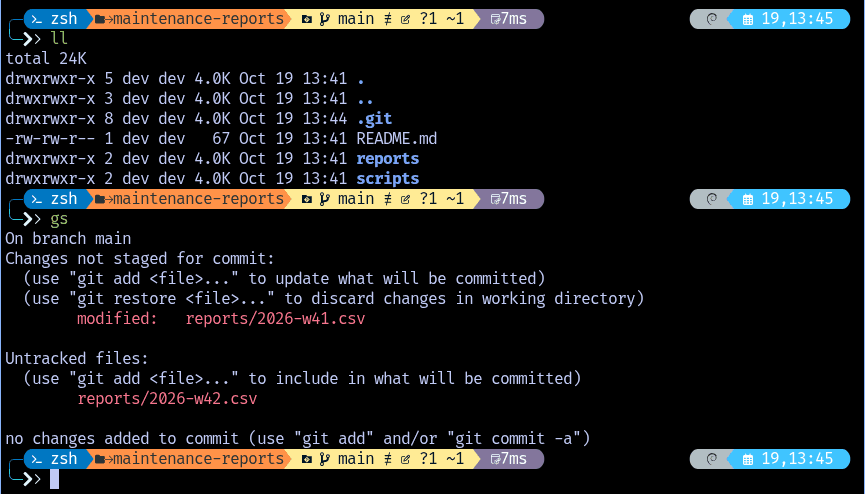
main ≢ ?1 ~1 reads as: branch main, no remote copy yet, one new file and one modified file. gs only confirms it.The prompt is Oh My Posh with the atomic theme. It shows the current folder, the git branch, how many files changed, and how long the last command took. Most mistakes in a terminal come from running a command in the wrong folder or on the wrong branch; the prompt keeps both in view.

git l is enough. The grey text is the last matching command from history. The right arrow key accepts it.Autosuggestions complete a command from your own history as you type. Press the right arrow to accept the suggestion, or keep typing to ignore it.
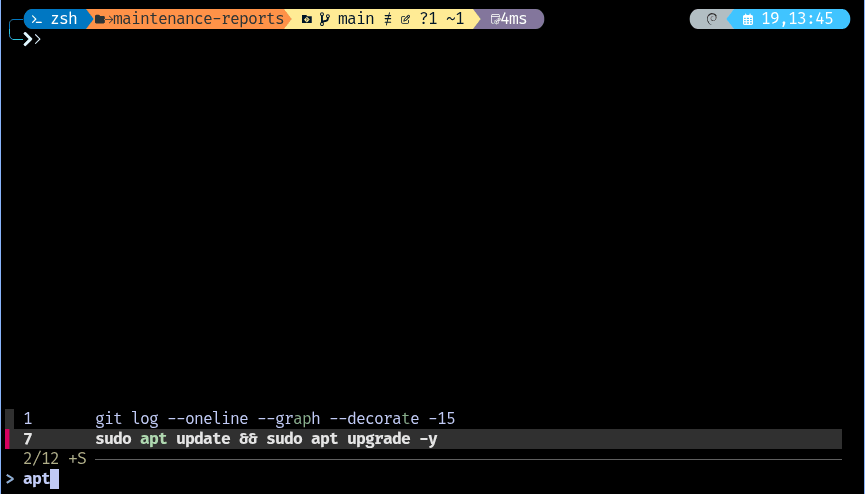
apt also matches across graph … decorate.fzf adds three searches:
| Keys | Searches |
|---|---|
Ctrl+R | Your command history |
Ctrl+T | Files under the current folder, inserted into the command line |
Alt+C | Folders under the current folder, and moves into the one you pick |
Aliases shorten the commands you run most. The ~/.zshrc the script writes includes these:
| Alias | Runs |
|---|---|
ll | ls -lah: every file, with sizes and dates |
gs / gd | git status / git diff |
gl | The last 15 commits as a graph |
ga, gc "message", gp | Stage everything, commit, push |
mkcd name | Create a folder and move into it |
zconf / zreload | Edit ~/.zshrc / reload it |
update | Update the system and every tool in this guide |
cp, mv and rm also ask before overwriting or deleting. Syntax highlighting colours a
command as you type it, so a typo shows up in red before you press Enter.
6. herdr: sessions, splits and a sidebar
herdr runs between Alacritty and the shell. Closing the window does not end your work: the tabs, panes and running programs stay alive, and the next Alacritty window reconnects to them, as long as WSL is still running.
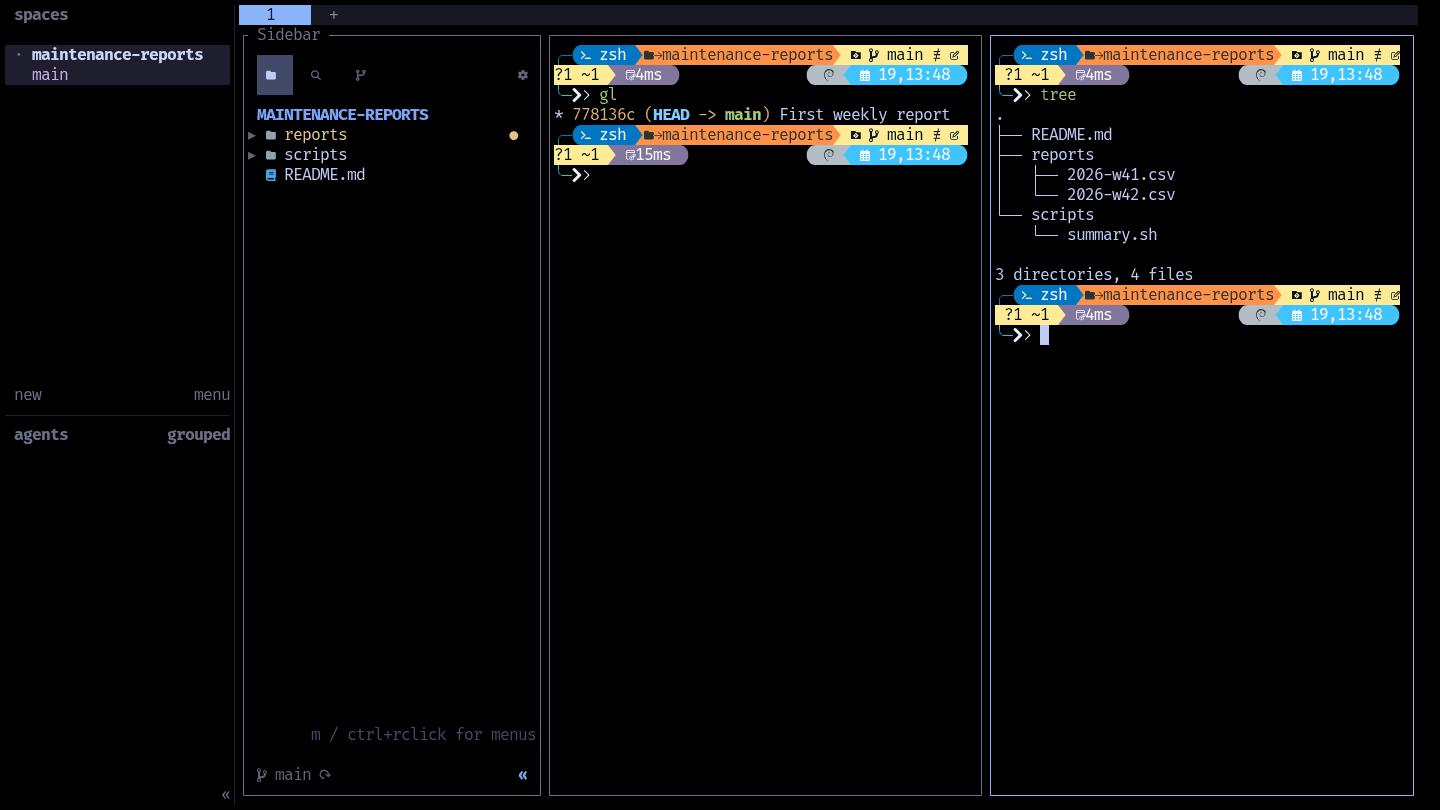
reports folder because it holds uncommitted changes; the two panes are separate shells in the same folder.All herdr keys start with Ctrl+B. Press it, let go, then press the next key:
After Ctrl+B | Does |
|---|---|
c | New tab |
v | Split the current pane in two |
x | Close the current pane |
h / l | Move to the pane on the left / right |
w | Switch between workspaces (one per project) |
f | Show or hide the sidebar |
d | Open the sidebar's source control view |
Shift+F | Find a file by name |
? | Every key and setting |
The mouse also works: click a pane to focus it, drag a border to resize it, and right-click for menus.
For agents, plugins, scripting and running herdr as a service, see A Practical Guide to herdr.
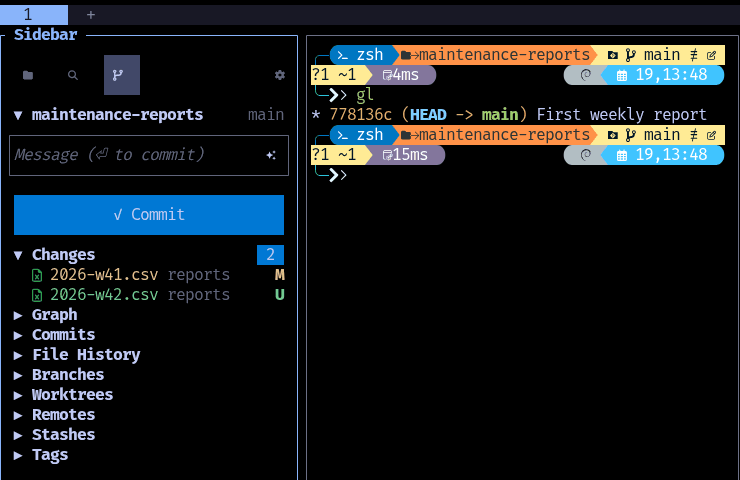
M is a modified file, U an untracked one. Type a message and press Enter to commit; the sections below hold the graph, branches and stashes.7. Keeping it current
Run update once a week. It upgrades Debian's packages, Oh My Posh, herdr and the zsh plugins,
one after another, and prints each step so you can see what changed.
Where to go next
- Your own configuration. Everything personal goes in
~/.zshrc(or~/.zshrc.local) and in Alacritty's file. Change one thing at a time and runzreload. - AI coding agents. Claude Code, Gemini CLI and similar tools run in exactly this kind of terminal. herdr shows on each tab whether its agent is working or waiting for you, which makes running two or three at once manageable.
- The complete version. The configuration I use on every machine, with more aliases, a
file manager, a status line for Claude Code and a longer
update, is in my dotfiles repository.