Running one AI coding agent in a terminal is easy. Running three is where it falls apart: one is waiting for you to approve a command, another finished ten minutes ago, and you only find out by clicking through every tab.
herdr solves that. It is a terminal multiplexer, in the same family as tmux and Zellij: it splits one window into tabs and panes, and it keeps everything running when you close the window or lose the SSH connection. What sets it apart is that it reads each pane and recognizes the agent inside it, so a sidebar tells you at a glance which agent is working, which one is blocked on a question and which one is done.
I replaced tmux with herdr on my orchestration server in August 2026, and it now sits behind every terminal I open, on the desktop, on the server and from my phone. This guide covers what I wish I had known on day one.
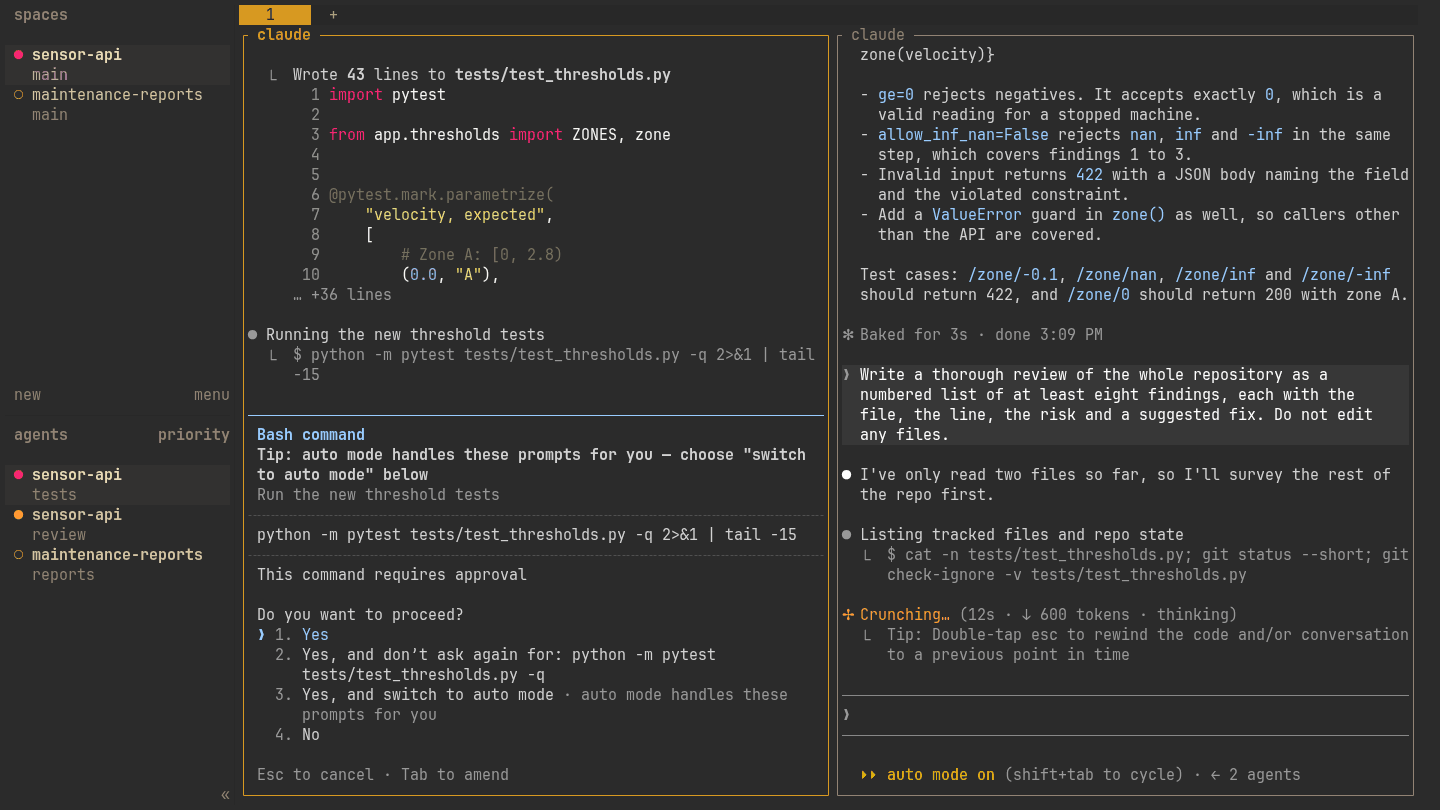
What you get
| Feature | What it means in practice |
|---|---|
| Persistent sessions | A background server owns the terminals. Close the window, reattach later, and everything is where you left it |
| Agent status | Each pane is marked working, blocked, done or idle, so the agent that needs you stands out |
| Spaces and agents sidebar | One row per project and one row per agent, across every tab |
| Mouse support | Click to focus, drag borders to resize, right-click for menus |
| Plugins | Panes and actions written as ordinary programs: file explorers, git panels, launchers |
| CLI and socket API | Everything returns JSON, so scripts and other agents can split panes, start agents and wait for them |
| Remote machines | Attach to herdr on another host over SSH, or list remote agents next to local ones |
It is one Rust binary, Apache 2.0 licensed, and it runs inside whatever terminal you already use: Alacritty, Ghostty, WezTerm, Windows Terminal or a browser terminal.
Install
On Linux, macOS and inside WSL, the official script installs the binary to ~/.local/bin:
curl -fsSL https://herdr.dev/install.sh | sh
With a package manager instead:
brew install herdr        # Homebrew
mise use -g herdr         # mise
Native Windows has a PowerShell installer. It is newer than the Linux build, and WSL works well in the meantime (my Windows setup uses the Linux script inside Debian):
powershell -ExecutionPolicy Bypass -c "irm https://herdr.dev/install.ps1 | iex"
Then check it:
herdr --version
herdr          # start the server and attach; Ctrl+B then Q detaches
herdr status   # client and server versions, run from outside herdr
Run herdr again to reattach. Nothing was stopped in between.
Workspaces, tabs and panes
herdr organizes work in three levels:
| Level | Think of it as | Typical use |
|---|---|---|
| Workspace (a "space") | A project | One per repository |
| Tab | A task inside that project | Agents in one tab, servers and logs in another |
| Pane | One terminal | An agent, a shell, a test watcher |
A new workspace starts in the folder you are in and takes its name, which is why the sidebar reads like a list of repositories.
The keys that matter
Every herdr key starts with the prefix, Ctrl+B by default (the same as tmux). Press it,
release it, then press the next key.
After Ctrl+B | Does |
|---|---|
v | Split the pane side by side |
- | Split the pane top and bottom |
h j k l | Move to the pane left, down, up or right |
Tab | Cycle through panes |
z | Zoom the current pane to full size and back |
r | Resize mode (arrows or hjkl, Esc to finish) |
x | Close the pane |
c | New tab |
n / p | Next / previous tab |
1…9 | Jump to a tab |
Shift+N | New workspace |
w | Navigate mode: arrows pick a workspace, Enter opens it |
b | Show or hide the spaces and agents sidebar |
o | Jump to the agent that just sent a notification |
s | Settings |
q | Detach (everything keeps running) |
? | Every binding, searchable |
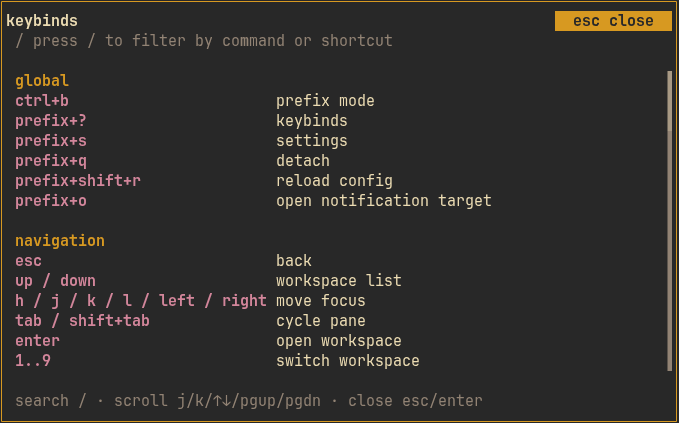
Ctrl+B ? is the only key to memorize. Press / in this panel to filter by command or shortcut, so you can type split instead of remembering v.The mouse covers most of the rest: click a pane to focus it, drag a border to resize it, and right-click a pane or a sidebar row for its menu.
Running agents side by side
Start your agents the way you always do. herdr does not wrap them: you type claude, codex,
gemini or opencode in a pane, and herdr recognizes the program from what it draws on screen.
It knows about twenty agent CLIs out of the box.
The states it reports:
| State | Meaning |
|---|---|
| working | The agent is generating, running a tool or thinking |
| blocked | It is showing an approval prompt or asking a question. It needs you |
| done | It finished while you were looking somewhere else |
| idle | It is ready for input and you have already seen its last answer |
| unknown | An agent is there, but herdr cannot read its state with confidence |
For the agents that support it, install the official integration as well. It reports the agent's session ID to herdr, so after a server restart the pane comes back inside the same conversation instead of a fresh one:
herdr integration install claude
herdr integration install codex
Three settings make a busy session easier to follow. They go in ~/.config/herdr/config.toml:
[ui]
agent_panel_sort = "priority"            # blocked agents first, not grouped by project
show_agent_labels_on_pane_borders = true # pane titles name the agent inside

[ui.toast]
delivery = "herdr"                       # a small popup when a background agent changes state

[ui.sound]
enabled = true                           # a sound for "done" and "needs you"
If red and yellow dots are hard to tell apart, status_indicators = "symbols" under [ui]
switches them to distinct glyphs.
The sidebar plugin: files and git in the same window
herdr's own sidebar lists spaces and agents. For files, I add herdr-sidebar, a plugin that docks a file explorer, a project search and a source control panel next to your panes, in the style of VS Code:
herdr plugin install alexarthurs/herdr-sidebar/plugins/herdr-sidebar
Plugins expose actions, and you bind actions to keys in config.toml. These are the bindings I
use. They avoid e, p and g, which herdr already uses:
[[keys.command]]
key = "prefix+f"
type = "plugin_action"
command = "herdr-sidebar.open-sidebar"
description = "sidebar: toggle"

[[keys.command]]
key = "prefix+shift+f"
type = "plugin_action"
command = "herdr-sidebar.quick-open"
description = "sidebar: quick open file"

[[keys.command]]
key = "prefix+d"
type = "plugin_action"
command = "herdr-sidebar.show-git"
description = "sidebar: source control"
Run herdr server reload-config (or press Ctrl+B Shift+R) and the keys are live.
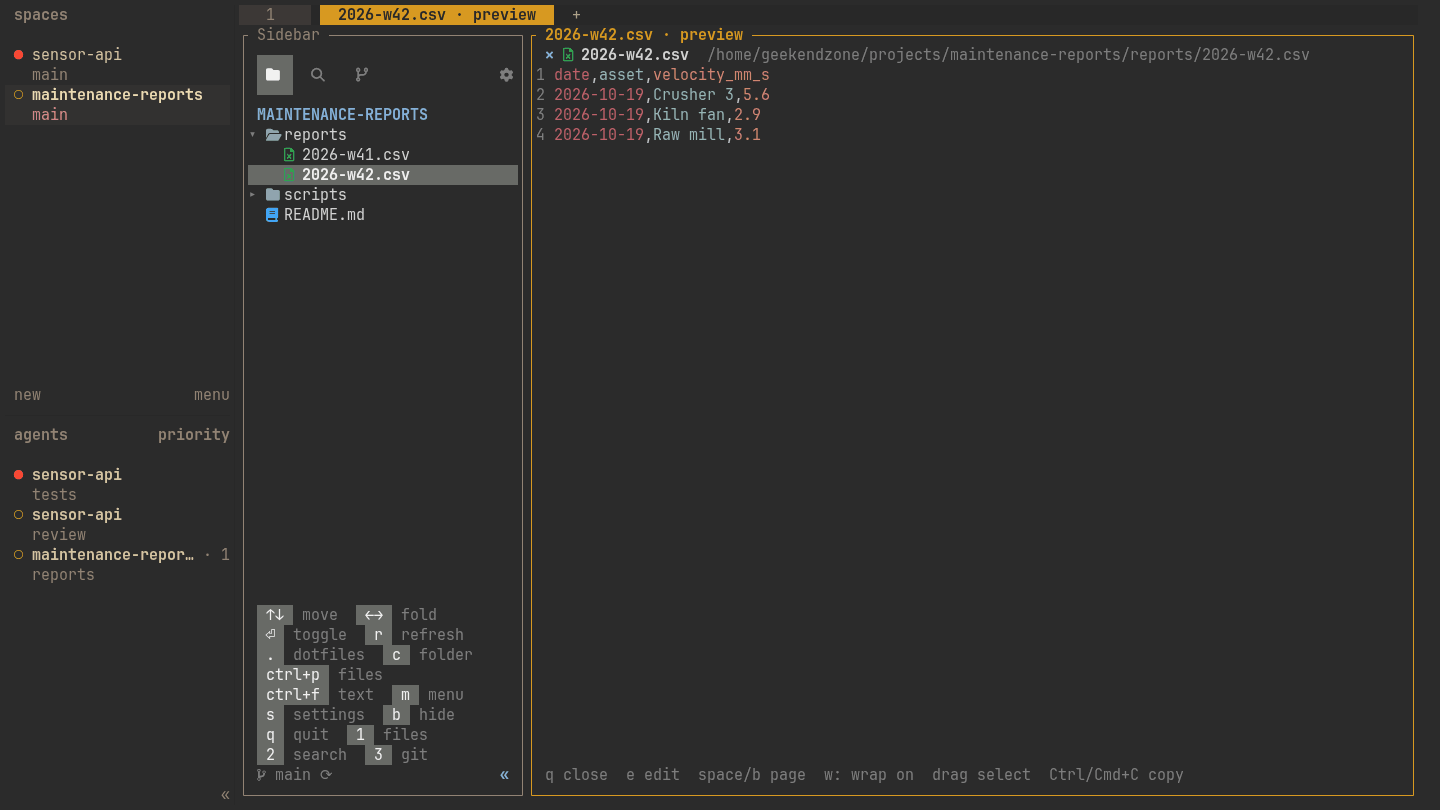
e inside a preview for the built-in editor.The source control view stages, commits, shows diffs and syncs with the remote. Its ✧ button
drafts a commit message with the local claude CLI when it is installed.
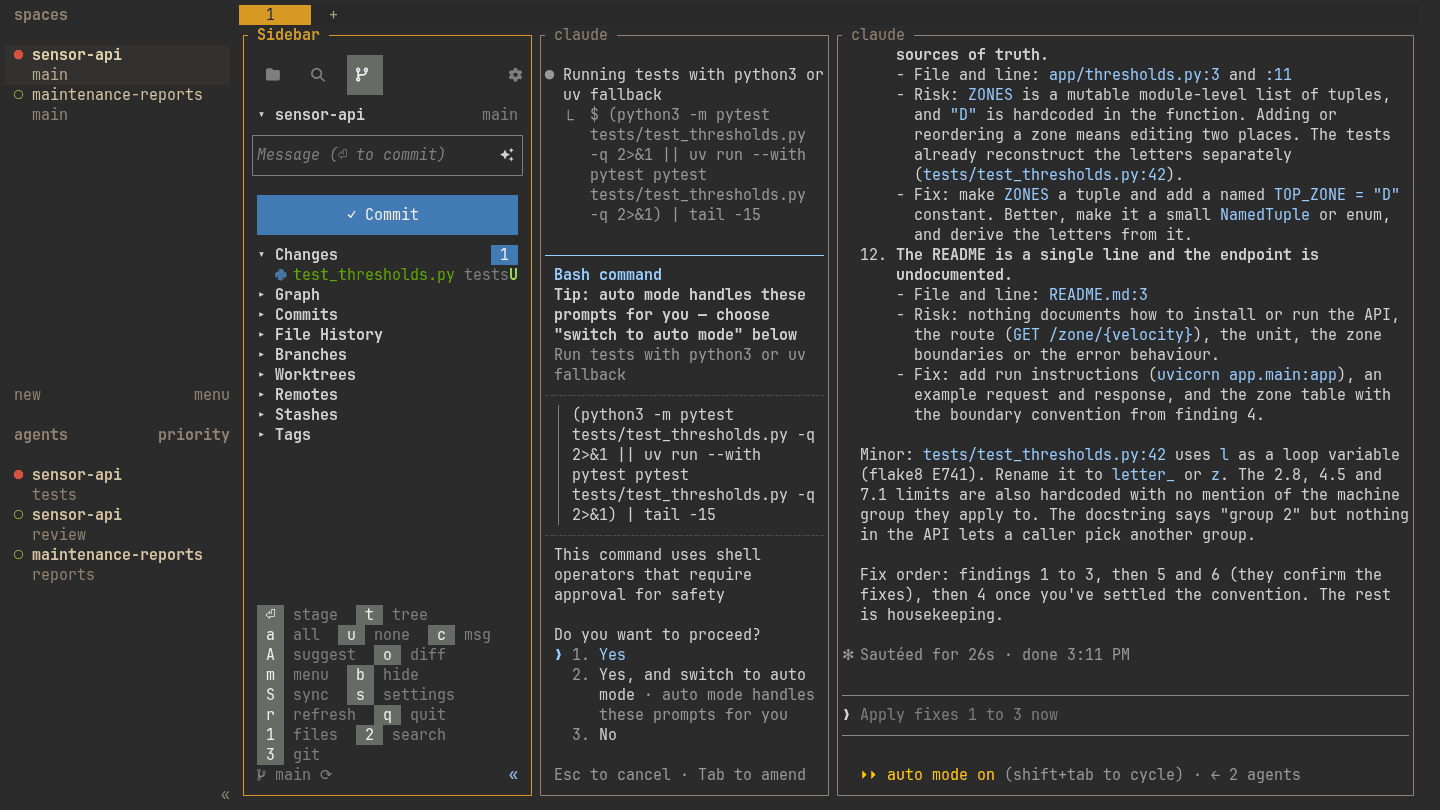
U), while the agent itself is still waiting for approval to run it.Other plugins install the same way. I also use herdr-yazi, which opens the yazi file manager in a split. The rest are listed at herdr.dev/plugins.
herdr plugin list
herdr plugin update      # every installed plugin
A popup for any tool
Any program can get a key of its own. A popup opens on top of your layout and disappears when
the program exits, which suits lazygit, btop or a quick htop:
[[keys.command]]
key = "prefix+alt+g"
type = "popup"
command = "lazygit"
width = "80%"
height = "80%"
type = "pane" opens a temporary pane instead, and type = "shell" runs the command in the
background with no window at all.
Scripting herdr, or letting an agent do it
Every herdr subcommand speaks JSON, which makes the layout scriptable. The screenshots in this
post were staged this way: a script split the panes, started the agents and sent them their
prompts.
# Split the current pane and keep the new pane's ID
pane=$(herdr pane split --current --direction right --no-focus | jq -r '.result.pane.pane_id')

# Start Claude Code in it under a name, then give it work and wait for it to settle
herdr agent start review --kind claude --pane "$pane" -- --model sonnet
herdr agent prompt review "Review app/thresholds.py for edge cases. Do not edit files." --wait --timeout 120000

# See every agent and its state, then read what this one said
herdr agent list
herdr agent read review --source recent-unwrapped --lines 80
--wait returns when the agent is idle, done or blocked, so a script can hand work to one agent,
wait for it, and pass the result to the next. herdr --skill prints a skill file that teaches
an agent these same commands, so Claude Code can open a sibling pane and delegate to another
agent on its own.
Running it on a server
herdr starts its server the first time you attach. On a machine that should always have it
running, put the server under systemd. herdr ships no unit file, so I wrote this one (replace
dev with your user):
# /etc/systemd/system/herdr.service
[Unit]
Description=herdr terminal workspace server
After=network.target

[Service]
Type=simple
User=dev
ExecStart=/home/dev/.local/bin/herdr server
Restart=on-failure
RestartSec=5
Environment=HOME=/home/dev
Environment=SHELL=/bin/zsh

[Install]
WantedBy=multi-user.target
sudo systemctl enable --now herdr.service
From another computer with herdr installed, attach to the server's session over SSH:
herdr --remote dev@server
herdr machine add dev@server goes one step further: it saves the server as a profile, and its
agents appear in your local sidebar next to your local ones.
Updating, and what survives a restart
herdr update
An update replaces the server, and here is what that means:
- Survives: workspaces, tabs, pane layout and working folders. Agents with an integration reopen in their previous conversation.
- Does not survive: the processes themselves. A running build, a dev server or an agent without an integration starts over.
Two habits from my own installs. Run herdr update from a shell outside herdr, not from one of
its panes. And when the server runs under systemd, finish with a plain restart of the unit rather
than the experimental herdr update --handoff: on my server, the handoff left the new server
running outside systemd's control, with the unit marked dead.
Install through Homebrew, mise or Nix, and that tool handles updates instead.
herdr, tmux or Zellij?
| tmux | Zellij | herdr | |
|---|---|---|---|
| Age | Since 2007, very stable | Since 2021 | Pre-1.0, frequent releases |
| Already installed on servers | Usually, or one package away | Rarely | No |
| Keeps sessions on detach | Yes | Yes | Yes |
| Restores after a server restart | With the tmux-resurrect plugin | Session resurrection | Layout, plus agent conversations through integrations |
| Knows what an AI agent is doing | No | No | Yes |
| Discoverability | Low, keys must be learned | High, hints on screen | High, mouse and searchable keys |
| Plugins | Shell scripts (TPM) | WebAssembly | Any program, declared in a TOML manifest |
| Scripting | send-keys and capture-pane | zellij action | JSON CLI and socket API, with waits on agent state |
| Config file | tmux.conf | KDL | TOML |
Where each one wins:
- tmux on servers you do not own. It is already there or one package away, and its keys work the same everywhere.
- Zellij for a friendlier terminal workspace when agents are not the point. Floating panes and its layout files are excellent.
- herdr when you run more than one coding agent. Seeing which agent needs you is the feature that changes how you work, and neither of the others has it.
Because herdr uses Ctrl+B too, tmux habits carry over: splits, pane movement and detach feel
familiar from the first day.
Troubleshooting
- Icons show as boxes or
Ø. The terminal font has no Nerd Font glyphs. Install one (JetBrainsMono Nerd Font, for example) and select it in the terminal, not in herdr. The sidebar plugin can also switch to emoji icons in its settings (sinside the sidebar). herdrrefuses to start inside a herdr pane. Nesting is off by default, on purpose. Detach first, or useherdr --session <name>from outside for a second, separate session.- The prefix does nothing. Another program may be catching
Ctrl+B, or an input method may be active. Pick another key withprefix = "ctrl+a"under[keys]. - Clicking a URL selects text instead of opening it. herdr captures the mouse. Set
mouse_capture = falseunder[ui], or hold the modifier your terminal uses for links. - Something looks wrong after an update. Run
herdr status. If the client and server versions differ, the old server is still running: detach, then restart it.
Where to go next
- The documentation at herdr.dev/docs covers worktrees, named sessions and the full socket API.
- The default configuration, with every option commented, prints with
herdr --default-config. Copy only the lines you change. - A complete terminal on Windows 11, with Alacritty, zsh and herdr installed by two scripts, is in A Serious Terminal on Windows 11.